


Macros
To automate some processes and use several skills at once.
Contents |
Basic rules for creating a macro
- A character can save 48 macros
- A macro name can contain 12 characters
- A macro's short name can contain 4 characters
- A macro can contain 12 lines
- One macro line can contain 40 characters (including the command)
- If you do any action while a macro is running (move the character, use an item/skill, open an interface window), the macro is interrupted.
- You can't add running another macro to a macro.
Macro contents
- Special prefixes can be used in a macro to set the message type:
| Text color | Prefix | Description |
|---|---|---|
| General chat | No prefix | The message is visible to other players within a small radius. |
| Shout | ! | The message is visible to other players within a fairly large radius. |
| Clan Chat | @ | The message is visible only to clan members. Unavailable if the character isn't in a clan. |
| Alliance Chat | $ | The message is visible only to alliance members. Unavailable if the character's clan isn't in an alliance. |
| Party Chat | # | The message is visible only to party members. Unavailable if the character isn't in a party. |
| Trade chat | + | The message is visible to other players within a fairly large radius. |
| Hero's Voice | % | The message is visible to all characters on the server. Only Hero characters can use such messages. |
| Whisper | " | A private message to another character; to write a private message, type "Character_name message. Only the sender and the recipient will see the message. |
| Command Channel | ` | The message appears when the command channel leader sends a message; a regular CC member can't send such a message. |
| Battlefield Channel | ^ | The message is visible to all characters taking part in the Territory War on the side of one castle. |
- Any chat commands can be used in a macro.
- The following constants can be used in a macro to set the macro's target
- Macro target constants CAN'T be used if written next to other characters. For example, the following macros won't work: "%target Hi! or %target, how are you?
| Constant | Description |
|---|---|
| %self | Use on yourself |
| %target | Use on the selected target |
| %pet | Use on the servitor/pet |
| %party1 ~ %party8 | Use on a party member according to their number in the party |
- In a macro you can use skill names to use them with the command /useskill
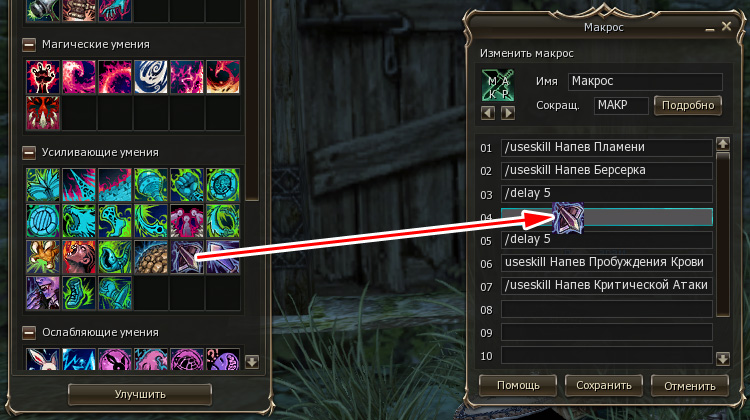

- /useskill [Skill Name] (as in the game, with spaces and capital letters).
- For players' convenience there's a drag-and-drop mechanism for skills: open the skills window and the macro creation window at the same time and drag the skill into the macro window onto the line you need.
- In a macro you can use items and skills on the shortcut bar with the command /useshortcut
- /useshortcut [Bar No.] [Slot No.], for example, /useshortcut 6 5 (use the item/skill in slot 5 on bar 6).
- For players' convenience there's a drag-and-drop mechanism for shortcut bar slots: open the macro creation window and drag the item/skill into the macro window onto the line you need.
- A macro command can be forced by adding the postfix force to the command (like pressing ctrl on the keyboard)
- For example: /useskillforce, /useshortcutforce, /attackforce
- You can add a condition to a command - don't move from your spot - by adding the postfix stand (like pressing shift on the keyboard)
- For example: /useskillstand, /useshortcutstand, /attackstand
- You can delay the next macro command using the command /delay [sec.]

Creating a macro

- Open the macro creation window from the menu or with the Alt+R. key combination
- Click the "Create" button.
- Write the macro's name (it will appear when you hover over the macro icon)
- Write the macro's short name - 4 characters that will always be shown over the macro icon (optional). If you like, you can describe the macro's action in more detail by clicking the "Details" button
- Choose the macro icon
- Fill in the macro according to the rules above
- Click "Save".
Editing a macro

- Open the macro creation window from the menu or with the Alt+R. key combination
- Drag the icon of the macro you need onto the hammer icon
 .
. - Edit the macro.
- Click "Save".

Deleting a macro

- Open the macro creation window from the menu or with the Alt+R. key combination
- Drag the icon of the macro you need onto the trash can icon

- Confirm deleting the macro.

Macros - related pages
|


